Five macros. One job each.
Each macro in North's Tweaked Macro takes one job off your hands in a fight. Here's what each one does, when it helps, and what you can set.
Hold one key. Edit on repeat.
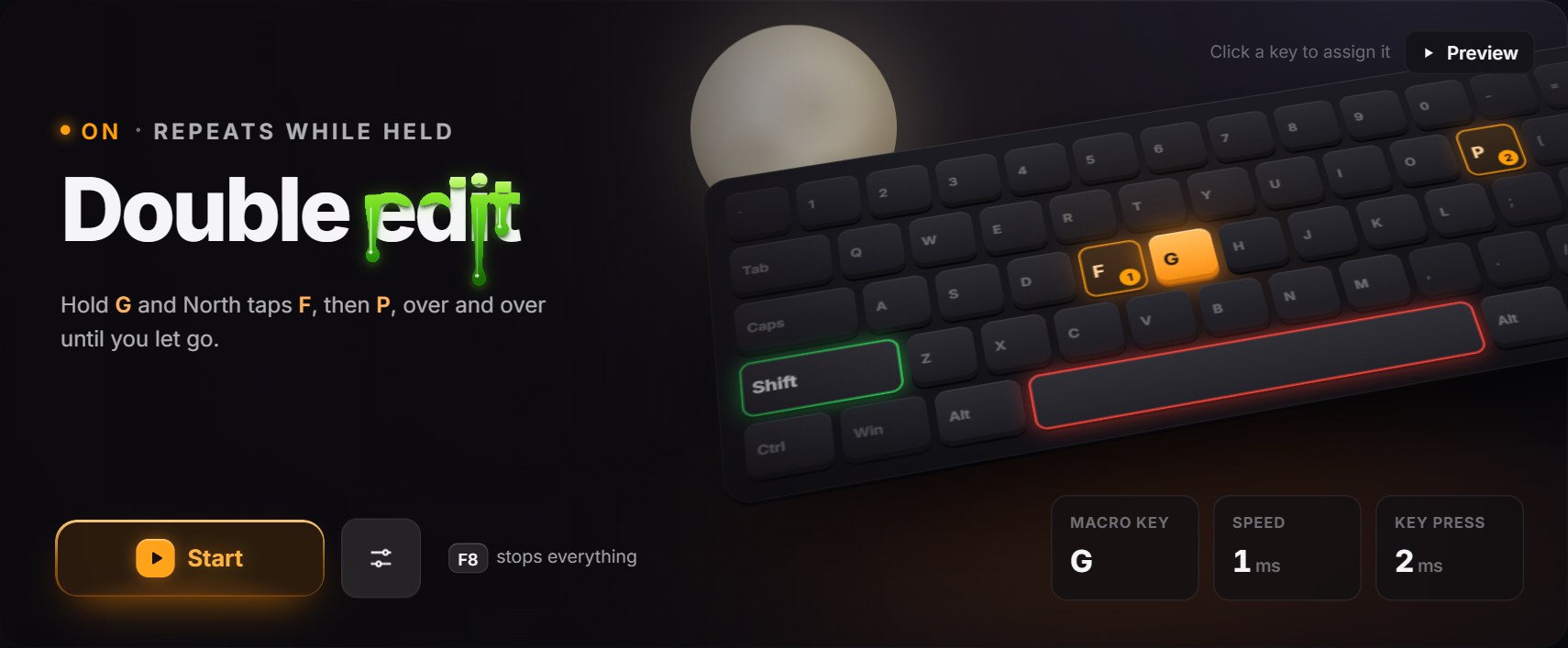
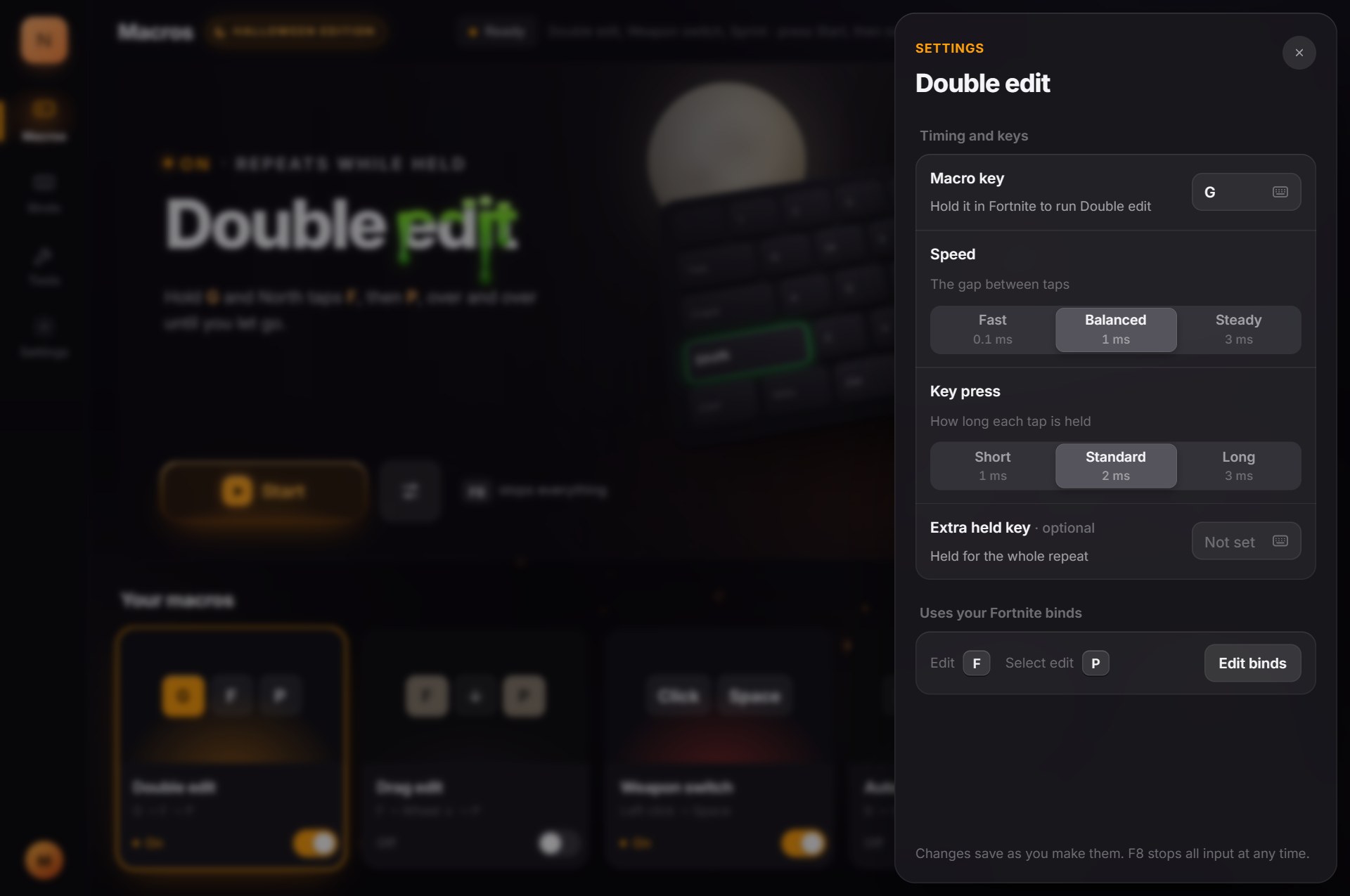
Hold your macro key (G by default) and North taps your Edit key, then your select key, over and over until you let go.
It helps when you're editing the same wall again and again in a box fight: one held key instead of two fingers racing each other. Set the gap between taps and how long each tap is held, and add an extra key to hold for the whole repeat if you need one.
- Activation
- Hold Gdefault, click to change
- Speed
- 0.1 / 1 / 3 msFast · Balanced · Steady
- Key press
- 1 / 2 / 3 msShort · Standard · Long
- Extra held key
- Optionalheld for the whole repeat
Reset, hold, drag.
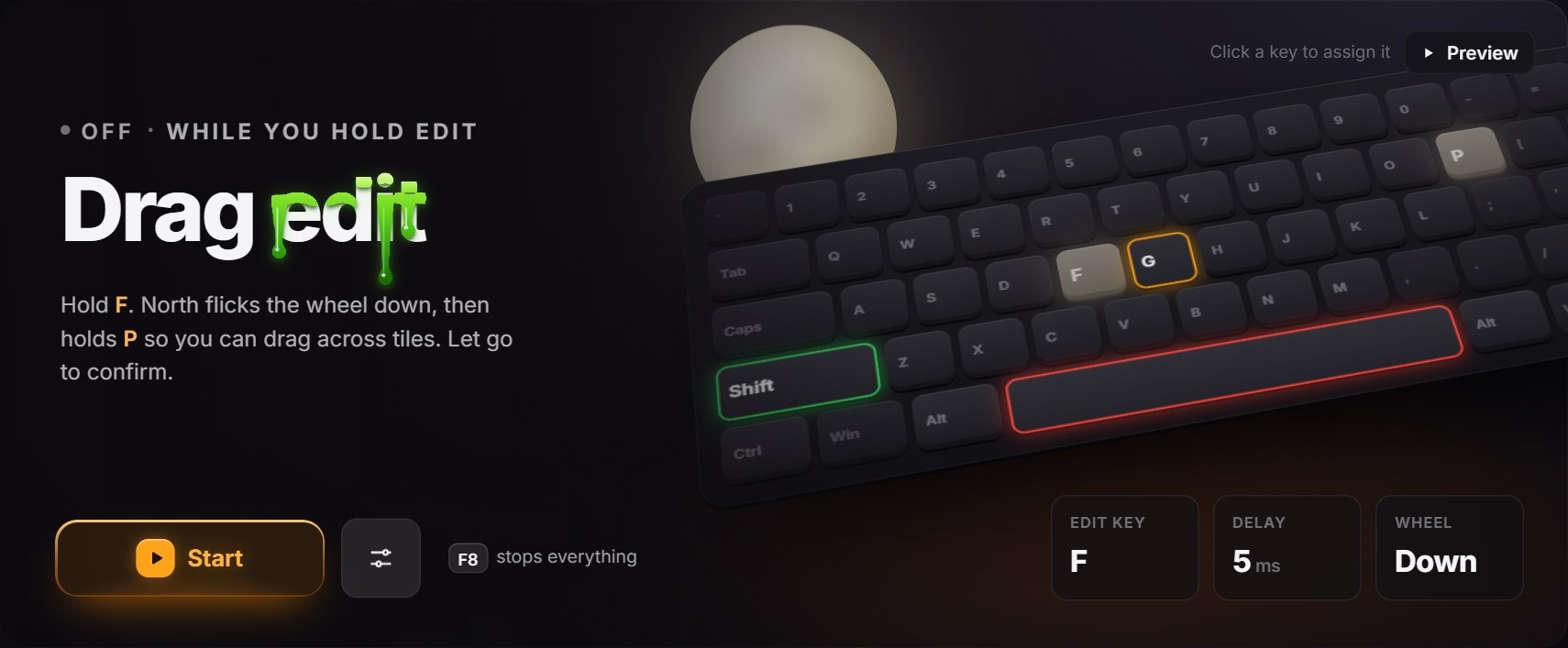
Hold your Edit key and North flicks the mouse wheel to reset the edit, then holds your select key so you can drag across tiles. Let go to confirm.
Your hand only has to sweep the mouse across the tiles you want; the reset and the held select happen for you. Pick which way the wheel flicks, down or up, and a select delay preset.
- Activation
- Hold your Edit keyfrom the Binds page
- Wheel flick
- Down or upyour choice
- Select delay
- 1 / 5 / 10 msQuick · Balanced · Steady
- Best for
- Drag editsreset and select done for you
Shoot, and the next gun is already out.
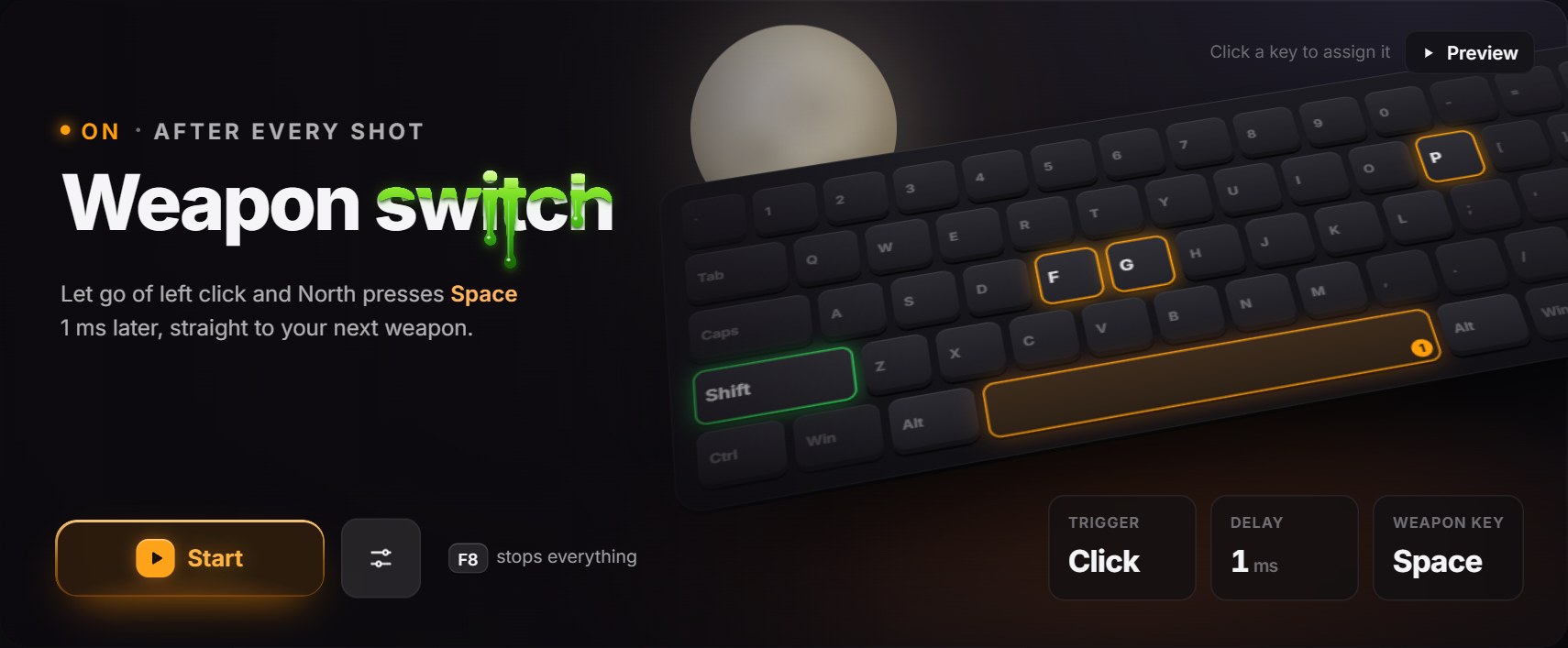
Let go of left click and North presses your weapon slot key (Space by default) a moment later, straight to your next weapon.
Fire, release, and you're on the next weapon without reaching for a key. If you're holding Ctrl, Shift or Alt, North keeps it held, so Toggle Crouch and Toggle Sprint don't flip on you.
- Trigger
- Letting go of left clickafter every shot
- Switch delay
- 1 / 5 / 10 msdefault 1 ms
- Weapon key
- Spacedefault, click to change
- Modifiers
- Ctrl, Shift, Alt kept heldtoggles don't flip
Tap once. Keep placing.
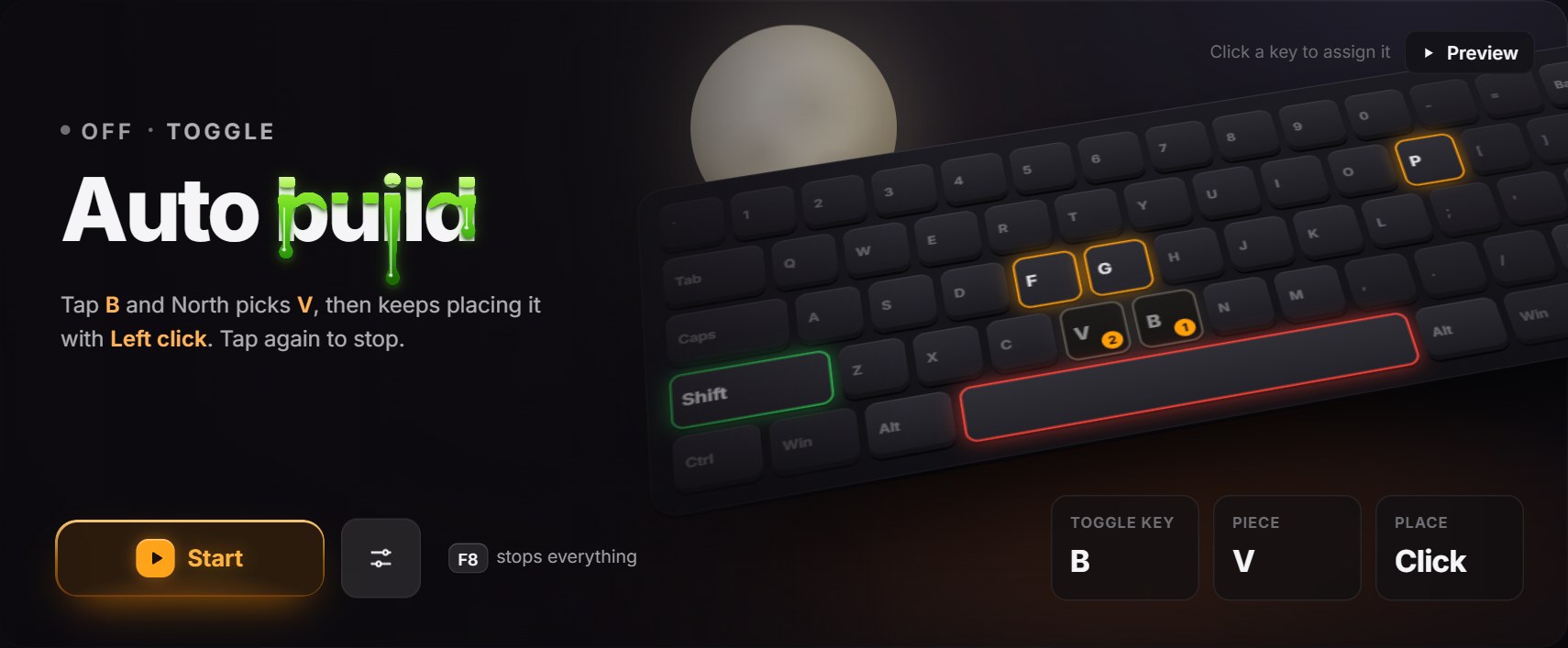
Tap its toggle key (B by default) and North picks your piece, for example your cone key, and keeps placing it with Fortnite's Place Building key, usually left click. Tap again to stop.
Good for when you want one piece placed over and over while your attention is on moving and aiming. It needs Fortnite's Turbo Building turned on.
- Activation
- Tap B to start, again to stopdefault, click to change
- Piece
- Your choicefor example your cone key
- Places with
- Place Building keyusually left click
- Fortnite setting
- Turbo Building onrequired
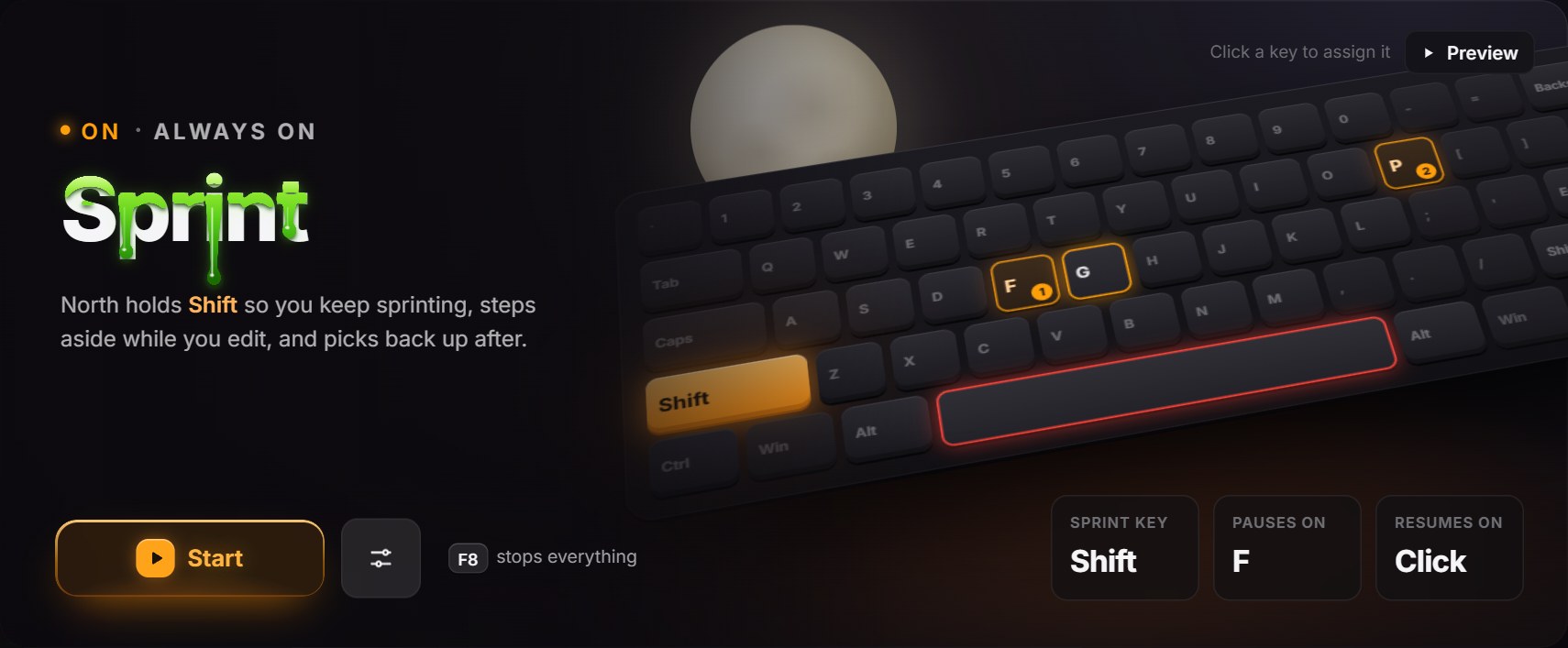
Keep running. Let go of Shift.
North holds your sprint key so you keep sprinting, steps aside while you edit, and picks back up after.
No more pinning Shift down all game. In Fortnite, use hold-to-sprint and set Auto Confirm Edits to Edit so it works the way it's meant to.
- Activation
- Always onwhile North is running
- Sprint key
- Your sprint bindfor example Shift
- While editing
- Steps asidethen picks back up
- Fortnite settings
- Hold to sprintAuto Confirm Edits: Edit
The rest of the app.
The parts around the five macros that make them easy to live with.
Switch on the fly
Turn any macro on or off while North is running. No need to stop first.
F8 stops everything
Press F8 at any time and all input from North stops.
A keyboard that shows its work
The 3D keyboard lights the keys the selected macro presses, in order.
Click a key to rebind
Click a key on a macro tile, or on the keyboard, to change it. If two binds clash, North flags it and suggests a free key.
Binds, set once
Enter your Fortnite binds on the Binds page: Edit, Select edit, Alternate select edit, Sprint, Weapon slot and Place Building. Every macro uses them.
Profiles
Switch between profiles, import and export them, and recover a previous version from the Tools page. Changes save automatically.
Live status, compact window
See what's on and running at a glance, or shrink North into a compact window.
Holds still in Fortnite
The app's animations hold still while you're in Fortnite, so it stays out of the way while you play.
Timing that holds
North runs at high priority, so its timing holds when your PC is busy.
All five for $15.
One payment, lifetime updates, and setup help in the Discord. Your token and download appear right after checkout, and Payhip emails you a link to them.
Buy North's Tweaked Macro